
How to set up VPN on Windows: step-by-step guide
Set up using the Happ app and import your VolonX subscription link. VolonX has no app of its own, everything runs in the trusted client.
1. Get free access or subscribe in Telegram
Open the VolonX bot in Telegram and activate 3 days free, no card required. You can subscribe later, once you see everything works. The bot gives you a connection link right away, which we'll import into Happ in the next step.
2. Set up Happ on Windows
The screenshots are in Russian, but the steps match the buttons in the apps.
- 1
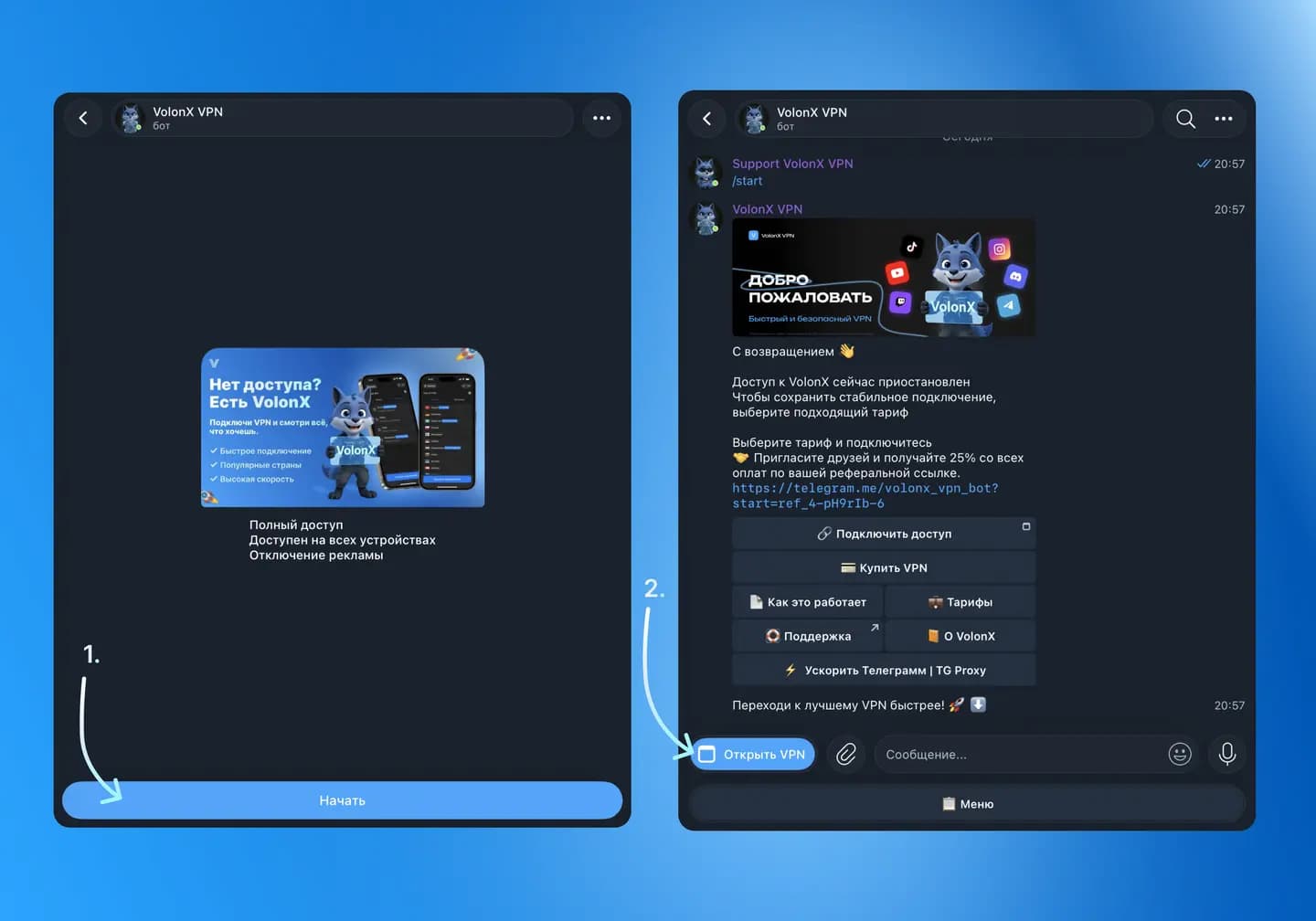
Open the VolonX bot in Telegram and tap “Start”.
- 2
Open the mini app via the “Open VPN” button.
- 3
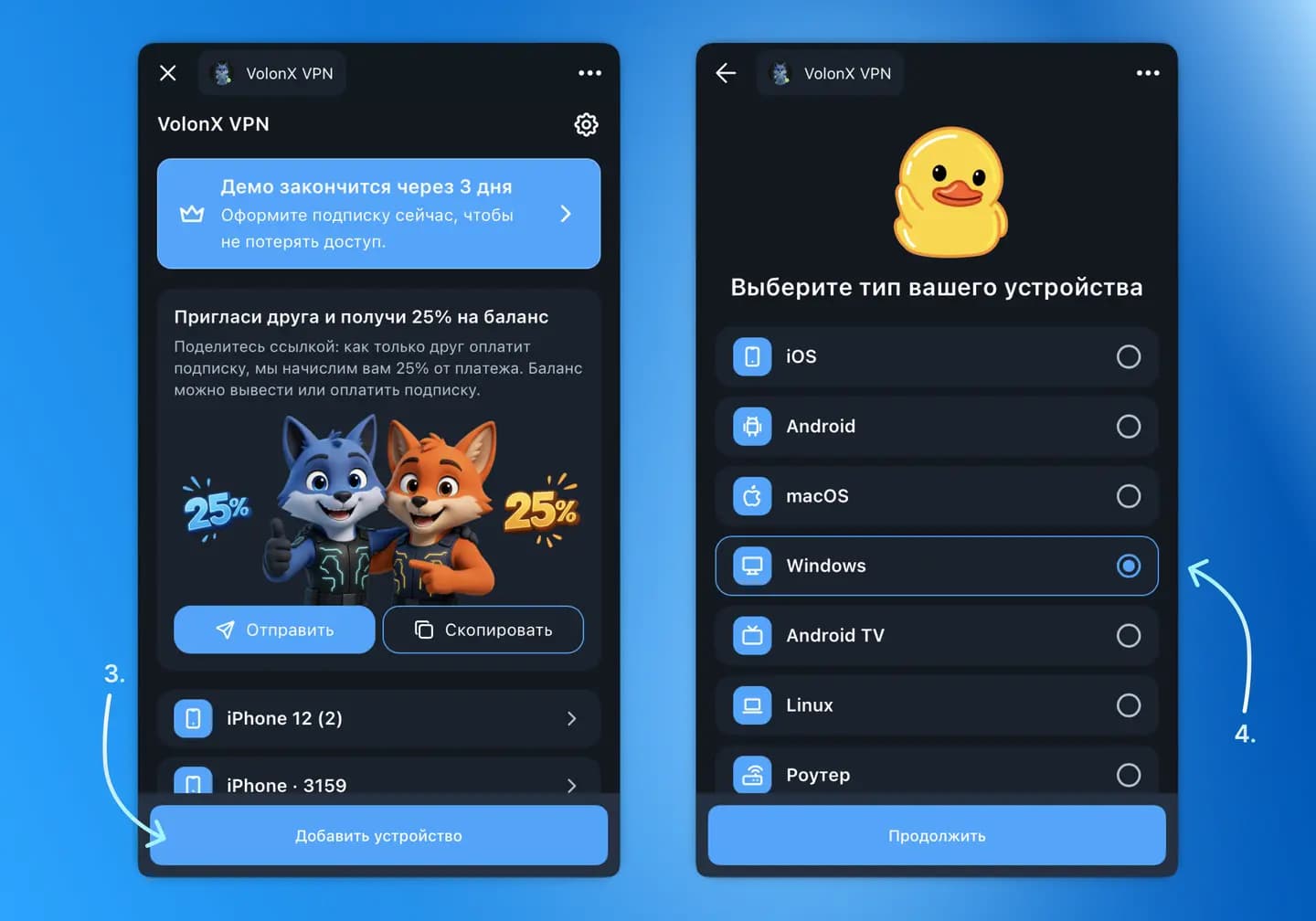
Click “Add device”.
- 4
Choose the Windows device type.
- 5
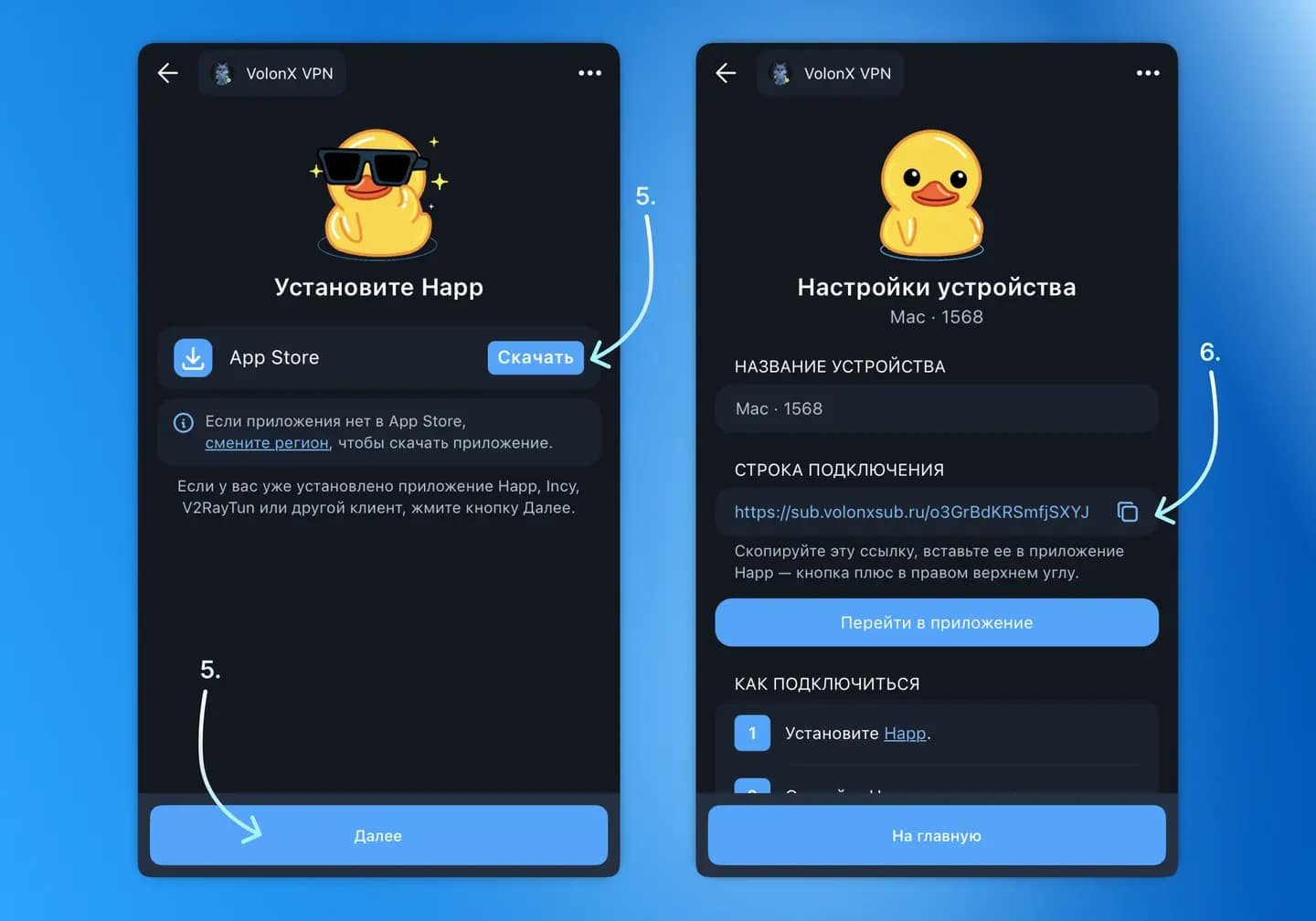
Click “Download” and install the Happ app. If Happ, Incy, V2RayTun or another client is already installed, click “Next”.
- 6
Copy the link shown in the connection field.
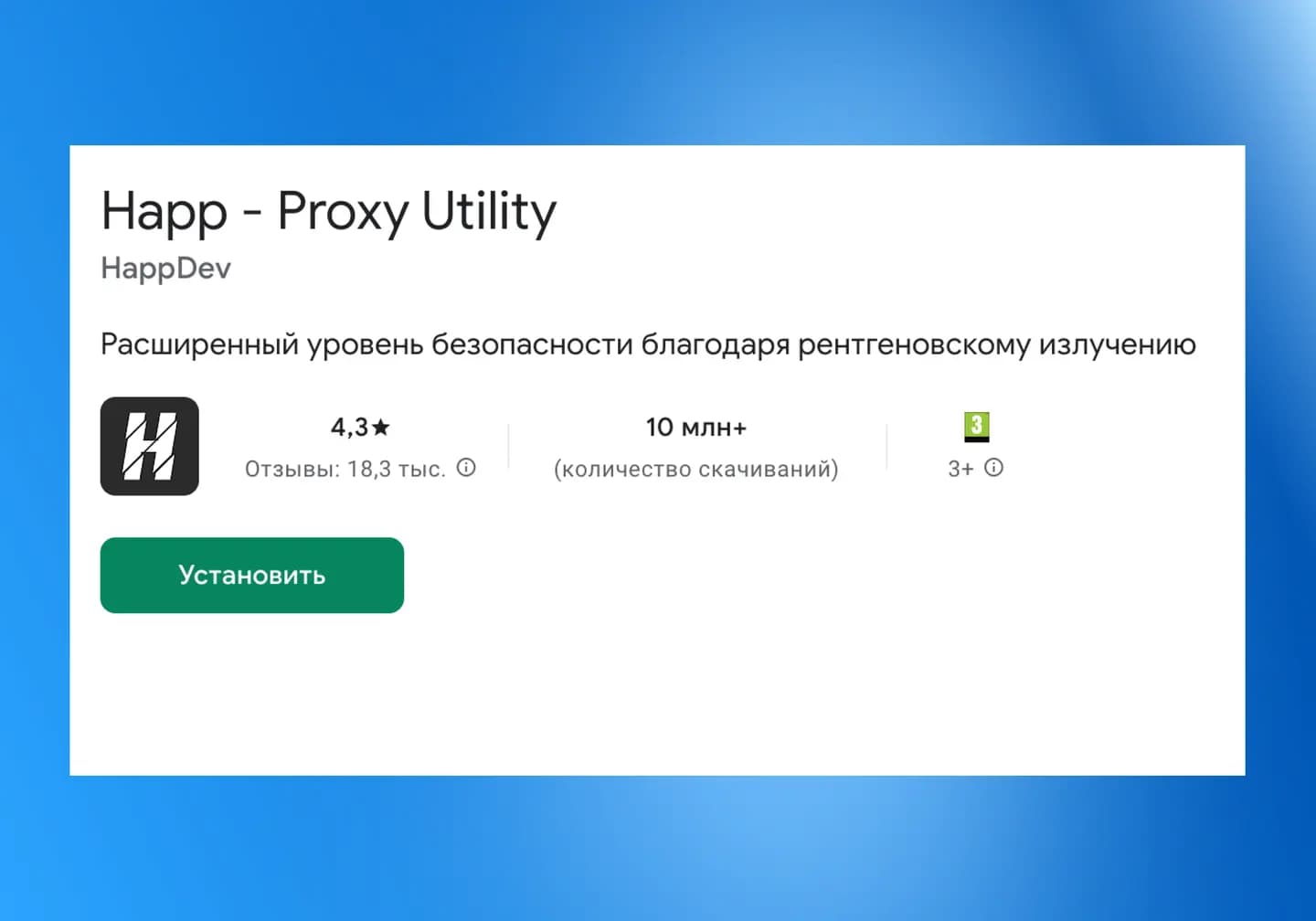
The Happ app page - 7
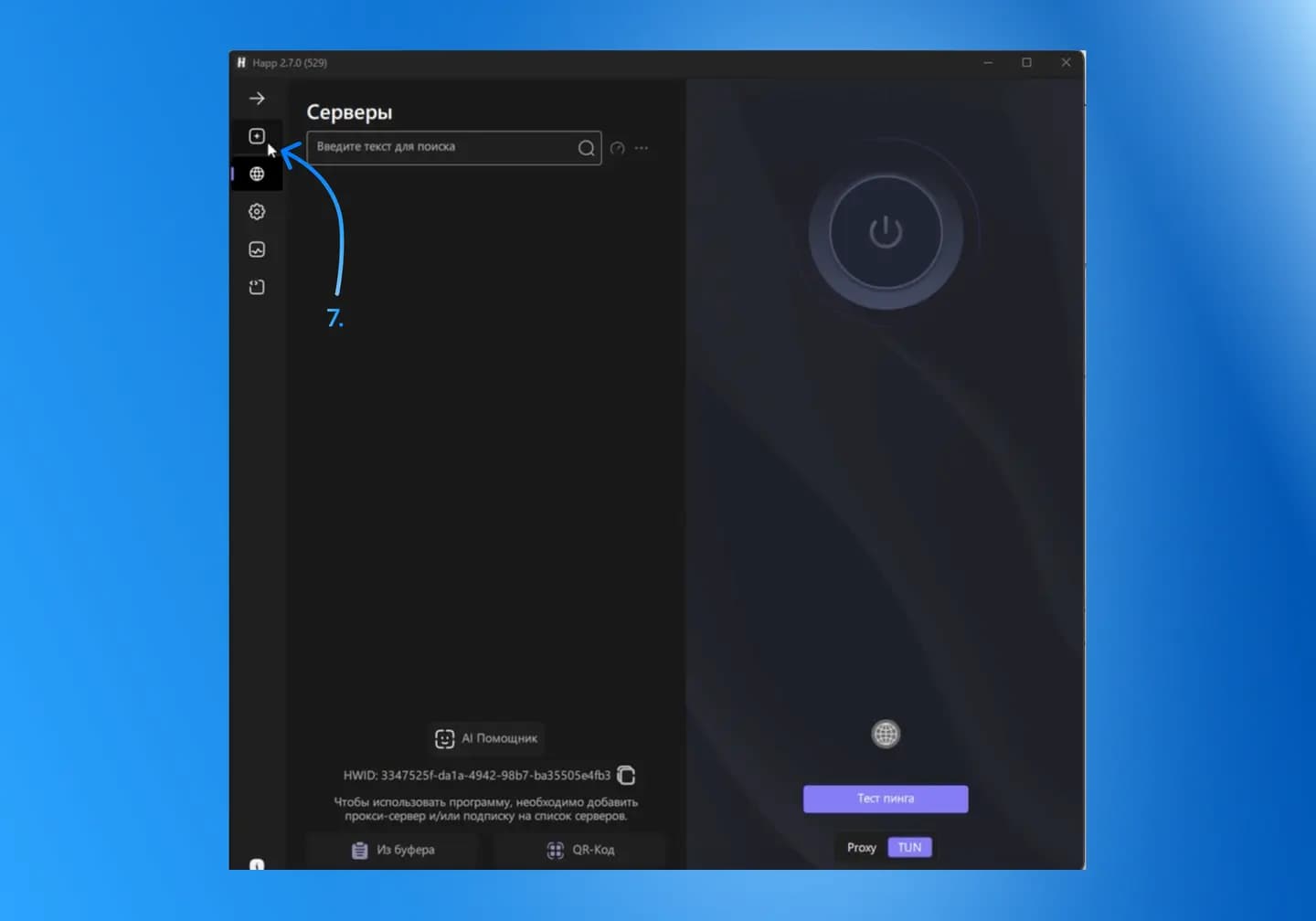
Open Happ and click “+”.
- 8
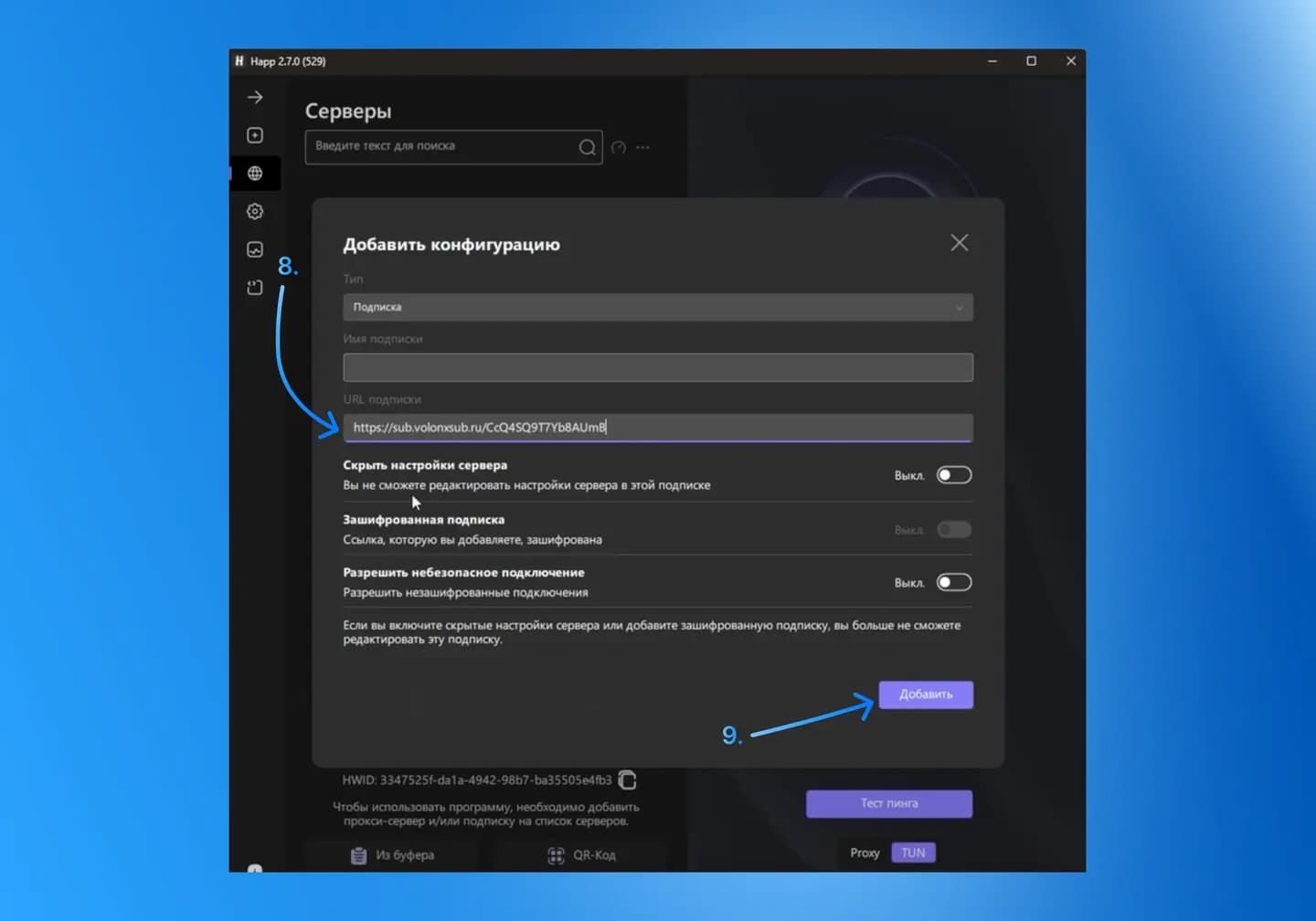
Choose “Subscription URL” and paste the link into the URL field.
- 9
Click “Add”.
- 10
Turn on the VPN, all set!
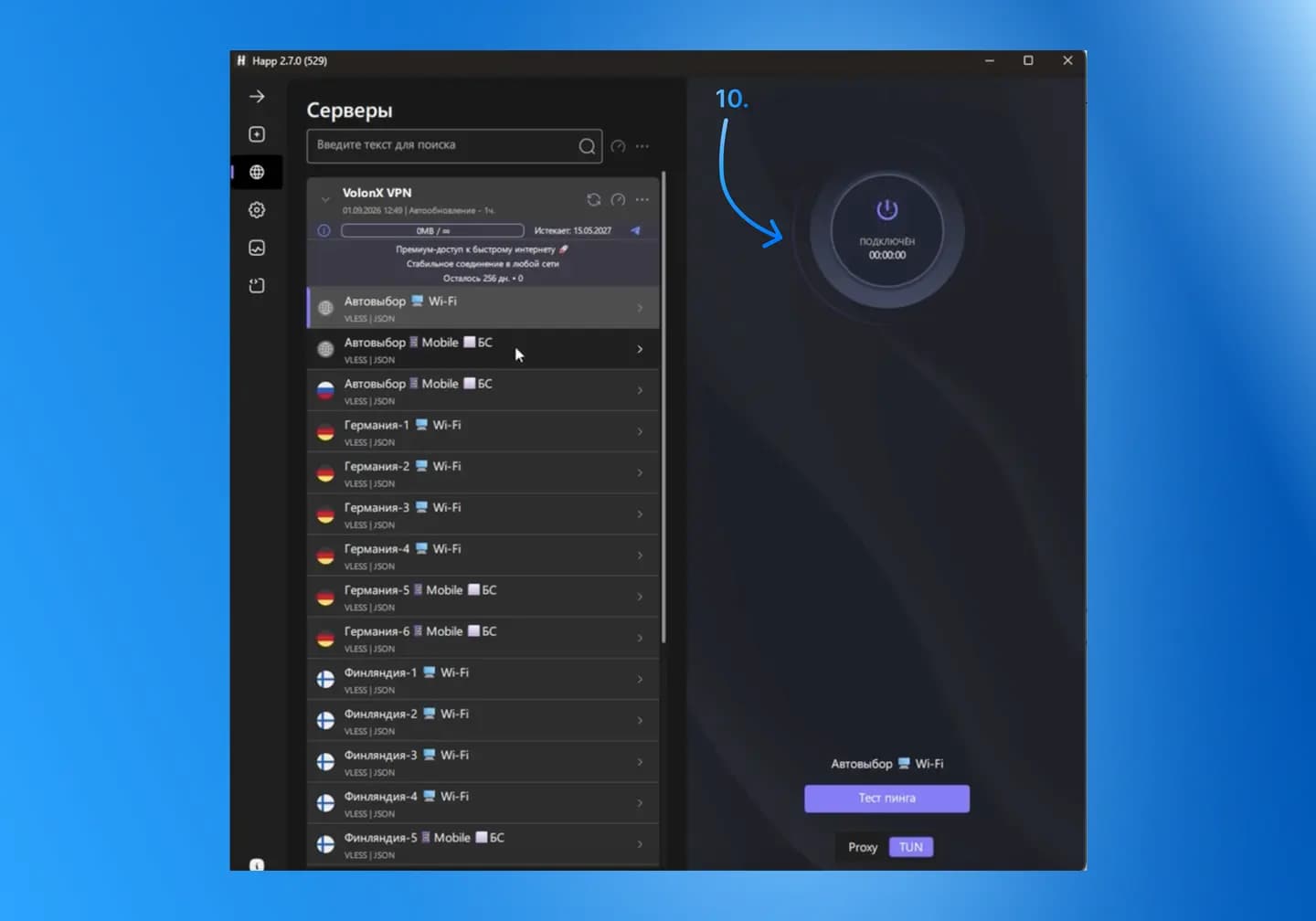
Done! VolonX VPN is installed and ready, a single tap on the main toggle turns it on or off. If something did not work out, message our support and we will help you connect: VolonX support.
FAQ
Other devices
Get VolonX on Windows
Subscribe in Telegram and start using it in a couple of minutes.